How to Register a Patient
How to Register a Patient
For independent practitioners, patients must be registered with Digital Rx before prescriptions can be issued. To register a patient in Digital Rx, you’ll need a valid Digital Rx User ID and Password.
Upon logging into the application, the New Prescription screen will appear automatically. To register a patient, select “Patient Registration” located at the top left corner under the Patient Search tab.
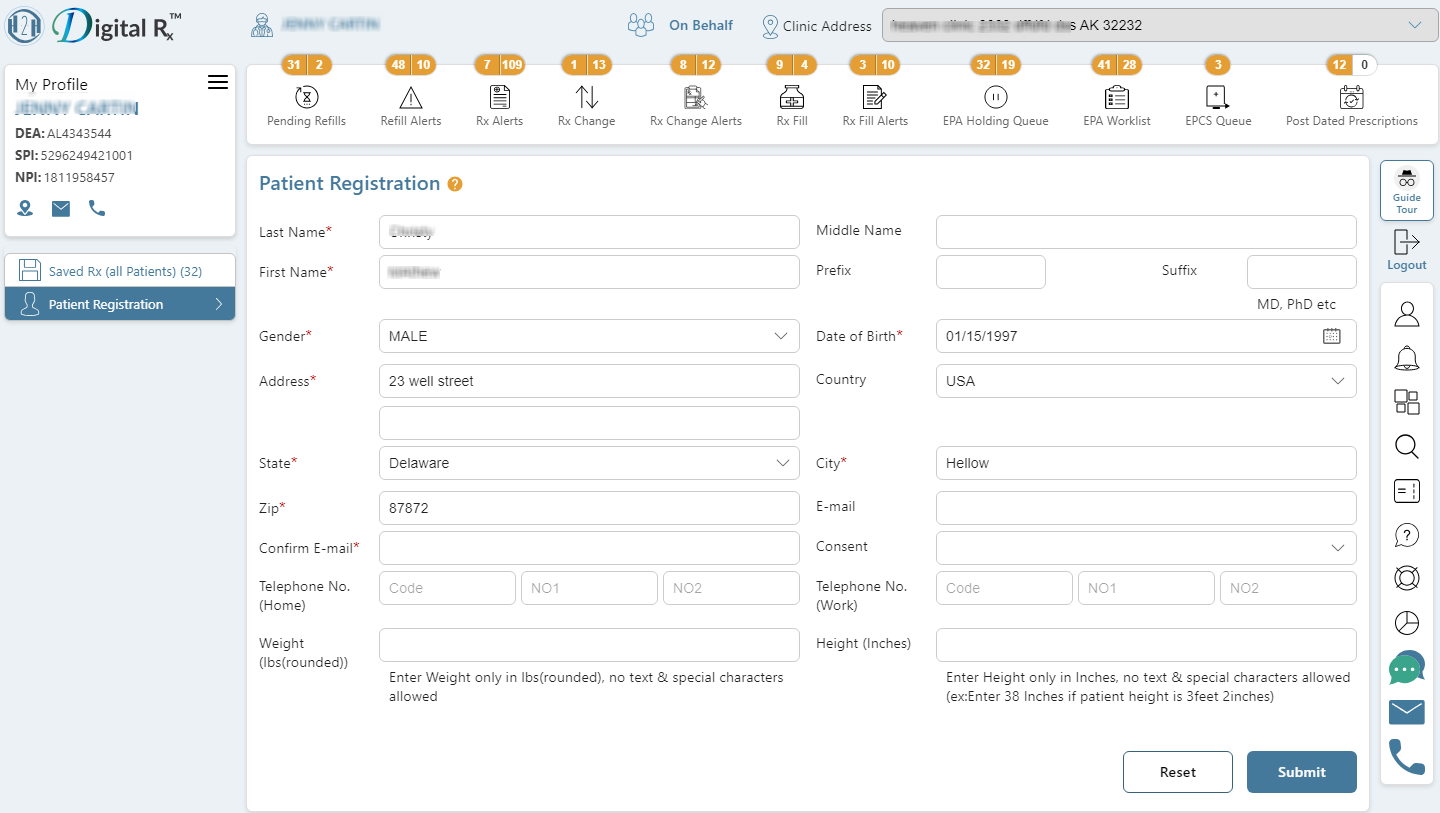
Alternatively, you can choose “Patient Registration” from the left panel under the Patient Search tab. This will open the Patient Registration screen, where you’ll find all the necessary fields to complete the registration process.

Patient Registration Form
Complete the information in the relevant fields. Fields marked with (*) are mandatory and must be filled out. After filling out the required fields, click on the Submit button to proceed.
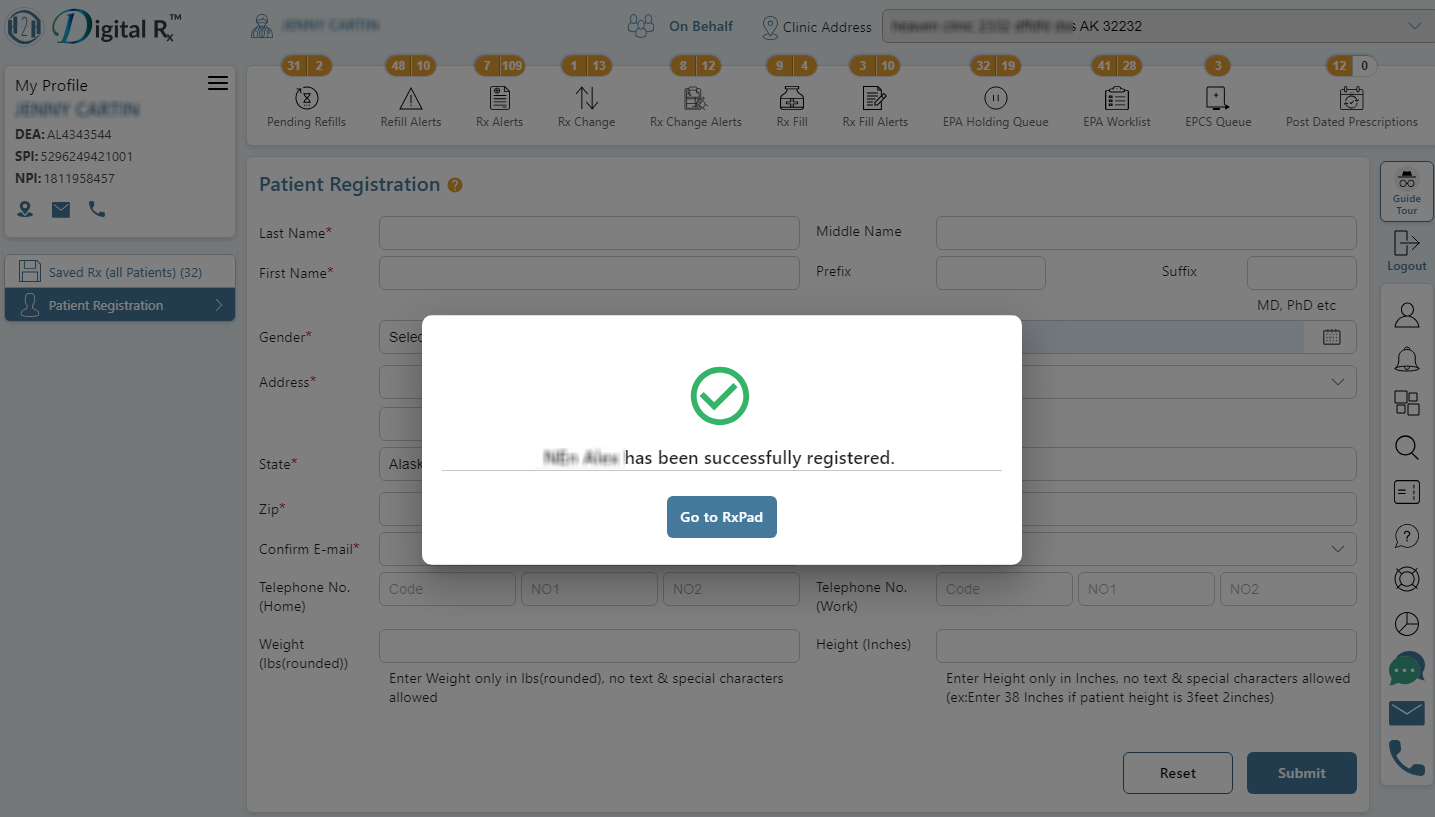
Confirming Patient Registration
Once the details are submitted, the patient registration process is completed, and a Patient ID will be generated.